Showing posts with label Samsung Galaxy Pocket. Show all posts

How to Rename Your Bluetooth Connection?


samsung galaxy settings
Go to your settings first


Tap Wireless and networks


Tap Bluetooth settings


check the box for Bluetooth to activate other options


Then you can now change your bluetooth's name by hitting the Device name

Dictionary on your mobile phone


If someone told you that you are a walking dictionary, it only means that you're a genius person.
Well, you don't need to be a genius to know most of the meaning of each word that you're encountering.
With an smartphone on your hand, you can now search the meaning of the word with just a simple searching on your handy dictionary.

One of the earliest dictionary we have is Merriam Dictionary.
They conquer the internet when they've launched their website Merriam-Webmaster.
Now, you can download a version of it that is applicable to your mobile phone.


 Dictionary - Merriam-Webster
 by Merriam-Webster Inc.


DOWNLOAD Dictionary - Merriam-Webster


Features:
* Synonyms & Antonyms
* Voice Search
* Example Sentences
* Audio Pronunciations
* Word of the Day
* Favorites - lets you keep a list of words that are particularly interesting to you
* For Tablets: Scrolling Index - lets you browse the entire dictionary
* For Phones: Reader View - lets you hide navigation buttons to see text in full screen
* Recent History - lets you keep track of the words you've looked up

LINE: Free Calls & Messages


LINE: Free Calls & Messages
by LINE Corporation

DOWNLOAD LINE 


Another Free Calls & Messages app that is now gaining its popularity next to Viber, KakaoTalk, WeChat is LINE.
They are introducing their brand through TV Commercials like what WeChat is currently doing now.
What makes this app differ from other same function app is that it has a lot of stickers.
Line Stickers are more than emoticons that you can use to help you show what you really feels.
Their stickers are now available in the market in a form of a hug-able dolls, key chains and other type of toys.

Sticker dolls version

Panorama in Samsung Galaxy Pocket


Who would have thought that there is already a built in panorama in Samsung Galaxy Pocket? Panorama became popular since iPhone released their version of it. Surprisingly, we don't need to buy those costly phone or download an app just to take a picture in a panorama mode. Samsung Galaxy Pocket is almost same with Samsung Galaxy Young, so as expected, this panorama mode in galaxy pocket is also available in galaxy young.


To set your Camera mode into PANORAMA
Simply go to your camera app
Check this top left corner and see it's current setting

This rectangular shape indicates that we're in a SINGLE SHOT mode, tap this and select the Panorama


Noticed that the rectangle white box at the top left is now replaced by a two mountain like shaped. We are in the Panorama Mode.

To start creating a Panorama picture, tap the camera at the middle right side. Move your came in either sides you want. It can be to the right, to the left, move it upward or downward.

As you can see, there is 0/8 at the bottom. This indicates that you can take 8 different parts or shot in just one photo.

Chikka Text Messanger: Absolutely free Text Message Application


Chikka Text Messenger
by Chikka Philippines

 DOWNLOAD Chikka Text Messenger


This mobile application allows you to send text messages from anywhere in the world to any mobile carrier in the philippines all for free. The advantages of this app from other same mobile application like Viber, WeChat, Line, KakaoTalk and other is that
  • You can send text messages even if the receipient of that message don't have chikka application installed on his mobile.
  • The receipient don't need to be connected in a Wifi or data connection.
  • The message can be receive on their phone as a normal text message without charging them.
  • The message can be received  even if the recipient have zero balance on their prepaid or postpaid SIM card.

LIMITATIONS
  • There is a credit given per pay and per receiver.
  • The total number of messages that you can send per receiver per day is only 8 messages. You can send another 8 messages for the same receiver and the same day as long as the receipient of the message reply to you via the number you were using in your chikka account.
  • There is a maximum of 160 characters per message.

MOBILE CARRIER CREDIT PER DAY
SMART: 32
GLOBE: 30
SUN: 20

In the credit given above, you can only send 32 text messages to SMART Subscribers per day, 30 for GLOBE and 20 for SUN.


How to change the orders of your home pages?


 Have you experienced that your home pages shifted? This thing happened to me recently that's why I find out a reason why it changed without my knowledge and how can I bring it back to it's original position. If we haven't set the screen lock option, the tendency is that we unknowingly made an action that can change some of the default settings we have on our phone.

menu key


To bring back the orders of your home pages,
tap the menu key


edit


Tap Edit.


Hold the page that you want to move,
wait until you felt that your phone vibrate


and drag it now to your desired position.


How to show the active character as you type it in the password field?


Confirm PIN
By default, you will see what character you are typing in the password field, and then it will turn to a solid circle for your security. But then, we sometimes accidentally changed our settings so we doesn't know why some default settings have changed. Typing a password without seeing the actual character could be a though situation especially if you can't login or access your account because you supplied a wrong information.

Location and security

To bring it back to it's default setting (Visible Password)
Go to your Settings

then tap Location and security

Visible passwords

Scroll down until you've reached the Passwords area.
Check if the Visible passwords were checked.

If not, then check it.


That's all.

You can now see the character as you type it in the password field.

WeChat for Samsung Galaxy Pocket


WeChat Logo


WeChat by Tencent Technology (Shenzhen) Company Ltd.

DOWNLOAD WeChat


As of June 2013, WeChat rank number 1 at Google Play Top Free App (play.google.com).

What makes it to that position?
TV commercial ads could be the main reason why WeChat attain its position right now. They already launched their TV ads at different countries including Hongkong, India, Indonesia, Malaysia, Mexico, Philippines, Singapore, Thailand.


WeChat TV Ads

 India: Varun Dhawan and Parineeti Chopra


Malaysia: Lisa Surihani & Shaheizy Sam

Mexico: Belinda y Ricardo Korkowski

Philippines: Iya Villania and Drew Arellano

How to disable the appearance of a text message on the notifications bar?


By default, message notifications are enabled.
You can see the preview of the message you got on the top bar portion of the screen.
It could be a hassle sometimes especially if you don't want others to see your incoming text messages .
To disabled this feature, you can change this at the messages settings.

Samsung galaxy pocket messages


Go to your messages

Samsung galaxy pocket menu


Tap the MENU key


Samsung galaxy pocket settings


Tap Settings

Samsung galaxy pocket notifications

Scroll down until you reach the Notifications
and unchecked this option.


That's it! You wouldn't see your receive text messages appearing on the notification bar anymore.

How could you know the total number of SMS/Text Messages you got?


One of the pre-installed  application on Samsung galaxy phones is SOCIAL HUB.


It includes all the messages you had on your SMS and Email. From this you will see the total number of messages you've been received and sent including those that were failed to be sent.


The number 0 in 0/268 indicates that there is no unread message(s) and

The number 268 indicates the total number of messages.

How to connect your phone to computer using USB?


Plug the USB connector on your phone and on the computer.

samsung galaxy pocket homepage
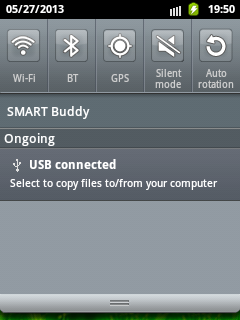
Slide down your finger tip from the top portion of the screen until you see the notifications status.


samsung galaxy pocket notifications


You must see something like this, indicating that the USB connector is plugged-in properly.

Then tap the USB connected to connect to your computer.

samsung galaxy pocket connect USB storage


Tap Connect USB storage.


 Then tap OK.


You can now check your computer to see if your device is already read.

Go to MY COMPUTER then look for the Removable Disk.

If you're having an SD Card on your phone, you will see two phone storage coming from your phone.

Skype for Samsung Galaxy Pocket


 Download Skype for your Android Phone


Skype is a powerful chat application that you should have on your mobile phone. Other than the usual chat that it can offer, you can call your family, friends and anyone that has an skype installed whether it's in desktop computer, laptop, or mobile phone. The reliability of this application is so powerful that you can able to make a call from different part of the world.

Features:
  • Skype to Skype IMs, video and voice calls are free* over 3G or WiFi.
  • Make low-cost calls and SMS to mobiles or landlines from your Android smartphone or tablet.
  • Send pictures, videos and files to any of your contacts.
  • Enjoy high-quality sound when you call anyone else on Skype.
  • Talk face to face or show what you’re seeing with front and rear-facing cameras.
  • Talk to your Windows Live Messenger friends on Skype. Sign into Skype with your Microsoft account and have your Messenger, Hotmail and Outlook contacts in one place.

Enable/Disable Background data in Samsung Galaxy Pocket


How to enable/disable BACKGROUND DATA in Samsung Galaxy Pocket?


First go to your SETTINGS


Tap Accounts and sync


then checked/unchecked the Background data

Facebook App for your Samsung Galaxy Pocket


How to add Facebook application to your Samsung Galaxy Pocket?

You can download it through your Play Store (or Market if you haven't upgraded it yet to Play Store )


On the search box, type Facebook, and probably the original Facebook app will appears at the top of the list.


You can also go directly here if you don't want to search.

DOWNLOAD FACEBOOK


Open that, then tap install, then tap accept & download.
Wait  until it finish downloading.
then open the app and your done.

Free internet using SMART


Smart Communications is now introducing SmartNet Application that allows users to access their facebook and twitter account for FREE. Yes it's all free.

This application currently supports SMART subscribers only. Non-SMART subscribers may visit www.smartnet.ph on the web or m.smartnet.ph for mobile.

To begin with, first you must have SmartNet Application on your phone.
I suggest that you use the WiFi connection to download this app easily.

DOWNLOAD SMARTNET


The logo of SmartNet


Once you open this app for the first time,
you will see that the Chat, Social, Alerts, Services and Settings are in colored gray and there's nothing happens when you tap it. This means that all those items are not yet available.

For those items to work, you need to Sign in first.
Probably, this will be your first sign-in so you need to register.

You must be a SMART subscriber for you to receive the verification SMS that they will send on your SMART SIM to be able to use this service.


Once you logged into your account,
Chat, Social, Alerts, Services and Settings
will now look like this on the picture.

Take a look at the top most bar, the WiFi icon is now replaced by this EDGE icon
I turned off my WiFi connection and I am now using the SMART data network connection (EDGE) so I can demonstrate to you that this app will give you the privilege to access your facebook, twitter and yahoo account for FREE.


How to use SmartNet?


Tap on this area to change the arrangement of the tools on the list.
For example you want the Social to be in the position of Contacts, just drag the item to the location you want.


Tap this Check icon once your done editing the items.


To connect your facebook, twitter and yahoo account,
tap on the Settings icon.


Tap on the social site icon to connect your account.

How to connect to facebook and yahoo chat? 

To connect to facebook chat and/or yahoo chat, tap the thunder icon inside the circle .

As you notice, twitter don't have this thunder icon because twitter don't provide chat on their site.

Once your facebook or twitter chat is connected, the icon will looks like this


To begin using your facebook and twitter,
tap the Social icon.


On your Feeds you have your
SmartNet,
Facebook (if you linked it),
Twitter (if you linked it).


just swipe your finger to rightwards or  leftwards to switch the feed from SmartNet, Facebook, or Twitter.
This is how the facebook feeds look like!
This is how Twitter feeds look like!


To create post on your facebook wall, or to tweet on your twitter,
tap these icons.

If you tap the first icon, it automatically directs you to posting area.
You will be directed here.

Tap the facebook icon if you want to post it to your facebook wall, or tap the twitter icon if you want to tweet it to your twitter account, or you can tap both if you want to post it to your facebook and twitter account.

If you don't tap any of the two, or whether you select the facebook or twitter or both, it will automatically post to your SmartNet wall.

If Facebook and Twitter icon are in gray color, it means that it wouldn't be posted to that social network.
If you selected this second icon,
to create post, tap on the Share.