Showing posts with label Blogger Widgets and plugins. Show all posts

18+ Social Media Sharing Widgets For Blogger Blogs


TOP 18 BLOGGER WIDGETSWith every new day we kept on blessing the Google Blogger with new widgets but we never expected that the number of widgets would grew to such a level that we would need a summary post for it. Thanks to your consistent feedback and motivation we are presenting the top 18 widgets created at MBT as a summary to help you better reach our resources. These widgets include major social networking buttons and counters from Facebook, twitter, stumbleUpon to the newly born Google +1'd button. The widgets load fast and are well coded in order to make them compatible with all major browsers. Kindly choose a widget of your choice and click the image  for reading the tutorial.


1. Floating Facebook Twitter Counters


2. Sliding +1 Counters & More


3. Facebook Style Social Share Buttons -Below Post Titles


image


4. Add Social Networking counters Below Blog Titles


5. Digg, Retweet Buttons and More -Below Post Titles


6. Google+, twitter, stumbleupon - Below Post Titles


7. Google Buzz Follow and Count Buttons


8. 1+ Count Buttons


9. LinkedIn Share Count Buttons


10. Facebook Like and Send Button


11. Facebook send button


image


12. Bookmark and Share Widget


13. Social Bookmarking and Share widget


image


14. Show Followers Count Of RSS, Facebook and Twitter


15. Social Media Widget With Search Box


16. Share Buttons For Post Bottom


17. Customize Twitter Follow Button in 7 ways!


18. Create Custom Follower Counters


19. FLOATING TWITTER BUTTONS


20. Do You Like This Story?


If I have missed mentioning any widget that we already published then please let me know. I will publish some more as my vocations just started. Hope you will like this post. Peace and blessings brothers and sisters. :)

Add Mp3 Music Player in Blogger


music-playerToday's player is much different from the music mp3 player I previously shared. It created by alsacreations and provided for free use. It is called Dewplayer, which is a smart easy to use flash mp3 player that comes in different sizes and shapes. You can create a beautiful playlist in your blogger blogs with it and with a professional look. I personally liked it a lot! Turn off the music below and lets try this new discovery.


How To Add Music Player To your Website?


1.  First you need to download this file: DewPlayer Bundle

2.  Unzip the file using winrar or winzip

3.  Now you can see a lot of files in it. I have compressed the popular types as shown below.

music player types

In this tutorial we will learn to create all types accept the playlist as I will be writing a more detailed post on it tonight. Select your favorite player and upload it (swf file) on a free hosting website along with your mp3 file.

4.  Now you just need to copy and paste anyone of the codes below inside your blogger posts, sidebars, anywhere you want.

PS: In each case below replace the highlighted text with the swf file link of the Player and replace MBT.mp3 with the mp3 link. For more options you can visit and create it using their tool or of course you can call me for help :d

Mini:


<object type="application/x-shockwave-flash" data="dewplayer-mini.swf" width="160" height="20" border="0" id="dewplayer" name="dewplayer"> <param name="wmode" value="transparent" /><param name="movie" value="dewplayer-mini.swf" /> <param name="flashvars" value="mp3=MBT.mp3" /> </object>

Classic:


<object type="application/x-shockwave-flash" data="dewplayer-classic.swf" width="200" height="20" border="0" id="dewplayer" name="dewplayer"> <param name="wmode" value="transparent" /><param name="movie" value="dewplayer-classic.swf" /> <param name="flashvars" value="mp3=MBT.mp3" /> </object>


Multi:


<object type="application/x-shockwave-flash" data="dewplayer-multi.swf" width="240" height="20" border="0" id="dewplayer" name="dewplayer"> <param name="wmode" value="transparent" /><param name="movie" value="dewplayer-multi.swf" /> <param name="flashvars" value="mp3=MBT.mp3" /> </object>


Multi Rect:


<object type="application/x-shockwave-flash" data="dewplayer-rect.swf" width="240" height="20" border="0" id="dewplayer" name="dewplayer"> <param name="wmode" value="transparent" /><param name="movie" value="dewplayer-rect.swf" /> <param name="flashvars" value="mp3=MBT.mp3" /> </object>


Bubble:


<object type="application/x-shockwave-flash" data="dewplayer-bubble.swf" width="250" height="65" border="0" id="dewplayer" name="dewplayer"> <param name="wmode" value="transparent" /><param name="movie" value="dewplayer-bubble.swf" /> <param name="flashvars" value="mp3=MBT.mp3" /> </object>


Troubleshooting


If you get into a problem then do not hesitate to post your query. Would be a pleasure to help you. I just hope you find useful and easy to implement. I will be publishing several other types of Music players soon in my future posts inshAllah. Have Fun Folks!

Create a Drop Down Menu In Blogger


Update: We have published almost 9 more menus like this one. To get them all just use the search box and type drop down menu. If you wish to add the same menu to Blogger Template Designer templates then read this post -> Custom Drop Down menu


image


Why do you run after scripts such as jquery while you can use simple CSS and HTML to create beautiful drop down menus for your blog. I already shared a list of 30 Navigation menus and now you need to learn how to create a drop down menu in a navigation. I am sharing a simple code here that can be fully customize to make your preferred changes. So lets get to work!


Live Demo


How To Create a Drop Down Menu?


A drop down menu is needed when you have too much content on your blog or you love keeping things organized. To add a drop down menu to your blogger blogs do this:


  1. Go To Blogger > Design > Page Elements

  2. Select a HTML/JavaScript Widget just under the header and paste the following code inside it,


drop down menu


<div id='mbtnavbar'>
      <ul id='mbtnav'>
        <li>
          <a href='#'>Home</a>
        </li>
        <li>
          <a href='#'>About</a>
       </li>
        <li>
          <a href='#'>Contact</a>
        </li>
  <li>
           <a href='#'>Sitemap</a>

            <ul>
                <li><a href='#'>Sub Page #1</a></li>
                <li><a href='#'>Sub Page #2</a></li>
                <li><a href='#'>Sub Page #3</a></li>
              </ul>

        </li>

      </ul>
    </div>

Replace # with your Page Links and the bolded text with relevant page names. The yellow highlighted code is responsible for the drop down menu. You can copy and paste it under any tab you want just before </li>

To add another tab just paste this code above </ul>


<li>

          <a href='#'>Tab Name</a>

        </li>


    3.   Now Go to Design > Edit HTML

    4.   Backup your template and search for ,


]]></b:skin>

     3.   Just above it paste the code below,


/*----- MBT Drop Down Menu ----*/


#mbtnavbar {
    background: #060505;
    width: 960px;
    color: #FFF;
        margin: 0px;
        padding: 0;
        position: relative;
        border-top:0px solid #960100;
        height:35px;

}


#mbtnav {
    margin: 0;
    padding: 0;
}
#mbtnav ul {
    float: left;
    list-style: none;
    margin: 0;
    padding: 0;
}
#mbtnav li {
    list-style: none;
    margin: 0;
    padding: 0;
        border-left:1px solid #333;
        border-right:1px solid #333;
        height:35px;
}
#mbtnav li a, #mbtnav li a:link, #mbtnav li a:visited {
    color: #FFF;
    display: block;
   font:normal 12px Helvetica, sans-serif;    margin: 0;
    padding: 9px 12px 10px 12px;
        text-decoration: none;
       

}
#mbtnav li a:hover, #mbtnav li a:active {
    background: #BF0100;
    color: #FFF;
    display: block;
    text-decoration: none;
        margin: 0;
    padding: 9px 12px 10px 12px;


}

#mbtnav li {
    float: left;
    padding: 0;
}
#mbtnav li ul {
    z-index: 9999;
    position: absolute;
    left: -999em;
    height: auto;
    width: 160px;
    margin: 0;
    padding: 0;
}
#mbtnav li ul a {
    width: 140px;
}
#mbtnav li ul ul {
    margin: -25px 0 0 161px;
}
#mbtnav li:hover ul ul, #mbtnav li:hover ul ul ul, #mbtnav li.sfhover ul ul, #mbtnav li.sfhover ul ul ul {
    left: -999em;
}
#mbtnav li:hover ul, #mbtnav li li:hover ul, #mbtnav li li li:hover ul, #mbtnav li.sfhover ul, #mbtnav li li.sfhover ul, #mbtnav li li li.sfhover ul {
    left: auto;
}
#mbtnav li:hover, #mbtnav li.sfhover {
    position: static;
}

#mbtnav li li a, #mbtnav li li a:link, #mbtnav li li a:visited {
    background: #BF0100;
    width: 120px;
    color: #FFF;
    display: block;
    font:normal 12px Helvetica, sans-serif;
    margin: 0;
    padding: 9px 12px 10px 12px;
        text-decoration: none;
z-index:9999;
border-bottom:1px dotted #333;

   
}
#mbtnav li li a:hover, #mbtnavli li a:active {
    background: #060505;
    color: #FFF;
    display: block;     margin: 0;
    padding: 9px 12px 10px 12px;
        text-decoration: none;
}

Make these changes:


  • Change #060505 to change background color of the Main menu

  • Change  the yellow highlighted text to change font color, size and family

  • Change #BF0100 to change the background of a tab on mouse hover

  • Change #BF0100 to change the background color of the drop down menu

  • Change #060505 to change the background color of drop down menu on mouse hover


      4.    Save your template and you are done!


Visit your Blogs to see a beautiful Navigation menu just below Header. Have Fun! :)

If you have any questions feel free to post them.

Facebook comments Box Instead of Blogger Comments Form


facebook-commnets-boxThe previous post on Facebook comments box did not replace your blogger comment form but if you wish to completely remove the blogger form and use this new plugin then steps are even more simple. However I may assure you one important thing here. I am soon going to publish a script that will automatically count and display Facebook and blogger comments beautifully and will show only one form at a time. For the time being apply this new trick.


Replace Blogger Comments Form With FB Comments Box


All the steps are exactly the same as mentioned in the earlier tutorial except step#7


1.  Instead of searching for this code,


<b:includable id='comment-form' var='post'>


Search for this code,


<data:post.body/>


  2.  Just after it, paste the same code we used earlier as shown below,


<b:if cond='data:blog.pageType == &quot;item&quot;'>
<div style='padding:0px 0px 0px 0px; margin:0px 0px 0px 0px;'><script src='http://connect.facebook.net/en_US/all.js#xfbml=1'/>
<div> <fb:comments  colorscheme='light' expr:href='data:post.url' expr:title='data:post.title' expr:xid='data:post.id' width='520'/></div>
<div style='color:#fff; background-color:#3B5998;border: solid 1px #ddd; font-size:10px; padding:3px; width:510px;'>Facebook Blogger Plugin: Bloggerized by <b><a alt='blogger templates' href='http://www.allblogtools.com/' style='text-decoration:underline; color:#fff;' target='_blank' title='blogger templates'>AllBlogTools.com</a></b> Enhanced by <b><a alt='blogger widgets' href='http://www.themobilehub.blogspot.com/' style='text-decoration:underline; color:#fff;' target='_blank' title='Blogger Widgets'>themobilehub.blogspot.com</a></b></div></div>
</b:if>


  • If you want to use the dark scheme then simply replace light with dark


  • To change the Comments box size, change this value width='520'


  • To change the footer credits size, change this value width:510px


  • Keep a difference of 10 pixels between the box size and footer size. For example if you set box-size to width='600' then set footer-size to width:590px


     3.  Save your template


Hide or Pop-up Blogger Comment Form


Here you have two options. Either you can,


  1. Hide the comments box but not the comments. The box will appear only when visitors will click the Post comment link. or


  2. Hide both Blogger comments and comments box


For the first option:


A pop-up link will display both Facebook and blogger comments but will hide the Blogger comment form as shown below, SEE DEMO ALSO


FACEBOOK-COMMENTS-FORM


To do this go to Blogger > Settings > Comments   and in the comment form placement option choose the pop-up option as shown below,


pop up blogger form


Save and you are done!


For The Second Option:


If you wish to hide both blogger comments and the comment box? In that case, set comments to hide


hide blogger comments


As mentioned by Blogger Hiding the comments will not delete them but temporarily hide them from visitors.


Hit save and you are done again!


What to Do Hide or Popup the form?


The best SEO and productive advise that I can give is that you may hide the Blogger comment box only but you must display blogger comments and give users the chance to comment with any platform they may like. In short the popup option is the best. Blogger comments are crawled by search engines and they are an important part of your content so its better that you don't hide them.


With coming days I will come up with more tweaks related to this brilliant traffic gifting Facebook plugin and will try to make it more blending with some customization tips.


You must know:


Floating Google +1, Facebook, Twitter Buttons For Blogger


Floating buttonsUPDATE:- To add a floating widget to the left of all your posts like in this blog then please read: Floating Counters Next To Posts


Finally the Sliding Counters! Till now we learned and created many floating social share buttons but those button widgets in fact do not slide when the user scrolls the page up or down. The only thing I needed was a well constructed JavaScript code that could make the widget to float up and down synchronously with the webpage movement. Thanks to Jtricks' Floating Menu code, we finally managed to bloggerize the floating effect and this widget is all ready to be added to your beautiful blogger blogs.  Kindly view the demo first,


Live Demo


Adding Floating Social share Counters to Blogger


  1. Go To Blogger > Design


  2. Choose a HTML/JavaScript widget


  3. Paste the following code inside it,


<style>

/*-------MBT Floating Counters------------*/

#floatdiv {

    position:absolute;

    width:94px;

    height:229px;

    top:0;

    left:0;

        z-index:100

}


#mbtsidebar {

        border:1px solid #ddd;

        padding-left:5px;

    position:relative;

    height:220px;

    width:55px;

    margin:0 0 0 5px;

}

</style>


<div id="floatdiv">

<div id="mbtsidebar">

    <table cellpadding="1px" cellspacing="0">

    <tr>

    <td style="border-bottom: 1px solid #E8E8E8; padding:5px 0 2px 0;">

<div id="fb-root"></div><script src="http://connect.facebook.net/en_US/all.js#xfbml=1"></script><fb:like href="" send="false" layout="box_count" show_faces="false" font=""></fb:like>

    </td>

    </tr>

    <tr>

    <td style="border-bottom: 1px solid #E8E8E8; padding:5px 0px;">

<g:plusone size="Tall" expr:href="data:post.url">

    </g:plusone></td>

    </tr>

    <tr>

    <td style="border-bottom: 0px solid #E8E8E8; padding:5px 0 0px 0;">

<a href="http://twitter.com/share" class="twitter-share-button" data-count="vertical" data-via="themobilehub.blogspot">Tweet</a><script type="text/javascript" src="http://platform.twitter.com/widgets.js"></script>

    </td>

    </tr>

    <tr>

    <td style="border-bottom: 0px solid #E8E8E8; padding:0px 0 0px 0;">

<p style=" font-size:10px; text-align:center; color:#ddd;"><a style="color:#ddd;" href="http://www.themobilehub.blogspot.com" target="_blank">Widgets</a></p>

    </td>

    </tr>

    </table>

</div>

</div>

<script type="text/javascript">

// JavaScript Document


   <!--

/* Script by: www.jtricks.com

* Version: 20071017

* Latest version:

* www.jtricks.com/javascript/navigation/floating.html

*/

var floatingMenuId = 'floatdiv';

var floatingMenu =

{

    targetX: 0,

    targetY: 300,

    hasInner: typeof(window.innerWidth) == 'number',

    hasElement: typeof(document.documentElement) == 'object'

        && typeof(document.documentElement.clientWidth) == 'number',

    menu:

        document.getElementById

        ? document.getElementById(floatingMenuId)

        : document.all

          ? document.all[floatingMenuId]

          : document.layers[floatingMenuId]

};

floatingMenu.move = function ()

{

    floatingMenu.menu.style.left = floatingMenu.nextX + 'px';

    floatingMenu.menu.style.top = floatingMenu.nextY + 'px';

}

floatingMenu.computeShifts = function ()

{

    var de = document.documentElement;

    floatingMenu.shiftX = 

        floatingMenu.hasInner 

        ? pageXOffset 

        : floatingMenu.hasElement 

          ? de.scrollLeft 

          : document.body.scrollLeft; 

    if (floatingMenu.targetX < 0)

    {

        floatingMenu.shiftX +=

            floatingMenu.hasElement

            ? de.clientWidth

            : document.body.clientWidth;

    }

    floatingMenu.shiftY =

        floatingMenu.hasInner

        ? pageYOffset

        : floatingMenu.hasElement

          ? de.scrollTop

          : document.body.scrollTop;

    if (floatingMenu.targetY < 0)

    {

        if (floatingMenu.hasElement && floatingMenu.hasInner)

        {

            // Handle Opera 8 problems

            floatingMenu.shiftY +=

                de.clientHeight > window.innerHeight

                ? window.innerHeight

                : de.clientHeight

        }

        else

        {

            floatingMenu.shiftY +=

                floatingMenu.hasElement

                ? de.clientHeight

                : document.body.clientHeight;

        }

    }

}

floatingMenu.calculateCornerX = function()

{

    if (floatingMenu.targetX != 'center')

        return floatingMenu.shiftX + floatingMenu.targetX;

    var width = parseInt(floatingMenu.menu.offsetWidth);

    var cornerX =

        floatingMenu.hasElement

        ? (floatingMenu.hasInner

           ? pageXOffset

           : document.documentElement.scrollLeft) +

          (document.documentElement.clientWidth - width)/2

        : document.body.scrollLeft +

          (document.body.clientWidth - width)/2;

    return cornerX;

};

floatingMenu.calculateCornerY = function()

{

    if (floatingMenu.targetY != 'center')

        return floatingMenu.shiftY + floatingMenu.targetY;

    var height = parseInt(floatingMenu.menu.offsetHeight);

    // Handle Opera 8 problems

    var clientHeight =

        floatingMenu.hasElement && floatingMenu.hasInner

        && document.documentElement.clientHeight

            > window.innerHeight

        ? window.innerHeight

        : document.documentElement.clientHeight

    var cornerY =

        floatingMenu.hasElement

        ? (floatingMenu.hasInner 

           ? pageYOffset

           : document.documentElement.scrollTop) +

          (clientHeight - height)/2

        : document.body.scrollTop +

          (document.body.clientHeight - height)/2;

    return cornerY;

};

floatingMenu.doFloat = function()

{

    // Check if reference to menu was lost due

    // to ajax manipuations

    if (!floatingMenu.menu)

    {

        menu = document.getElementById

            ? document.getElementById(floatingMenuId)

            : document.all

              ? document.all[floatingMenuId]

              : document.layers[floatingMenuId];

        initSecondary();

    }

    var stepX, stepY;

    floatingMenu.computeShifts();

    var cornerX = floatingMenu.calculateCornerX();

    var stepX = (cornerX - floatingMenu.nextX) * .07;

    if (Math.abs(stepX) < .5)

    {

        stepX = cornerX - floatingMenu.nextX;

    }

    var cornerY = floatingMenu.calculateCornerY();

    var stepY = (cornerY - floatingMenu.nextY) * .07;

    if (Math.abs(stepY) < .5)

    {

        stepY = cornerY - floatingMenu.nextY;

    }

    if (Math.abs(stepX) > 0 ||

        Math.abs(stepY) > 0)

    {

        floatingMenu.nextX += stepX;

        floatingMenu.nextY += stepY;

        floatingMenu.move();

    }

    setTimeout('floatingMenu.doFloat()', 20);

};

// addEvent designed by Aaron Moore

floatingMenu.addEvent = function(element, listener, handler)

{

    if(typeof element[listener] != 'function' ||

       typeof element[listener + '_num'] == 'undefined')

    {

        element[listener + '_num'] = 0;

        if (typeof element[listener] == 'function')

        {

            element[listener + 0] = element[listener];

            element[listener + '_num']++;

        }

        element[listener] = function(e)

        {

            var r = true;

            e = (e) ? e : window.event;

            for(var i = element[listener + '_num'] -1; i >= 0; i--)

            {

                if(element[listener + i](e) == false)

                    r = false;

            }

            return r;

        }

    }

    //if handler is not already stored, assign it

    for(var i = 0; i < element[listener + '_num']; i++)

        if(element[listener + i] == handler)

            return;

    element[listener + element[listener + '_num']] = handler;

    element[listener + '_num']++;

};

floatingMenu.init = function()

{

    floatingMenu.initSecondary();

    floatingMenu.doFloat();

};

// Some browsers init scrollbars only after

// full document load.

floatingMenu.initSecondary = function()

{

    floatingMenu.computeShifts();

    floatingMenu.nextX = floatingMenu.calculateCornerX();

    floatingMenu.nextY = floatingMenu.calculateCornerY();

    floatingMenu.move();

}

if (document.layers)

    floatingMenu.addEvent(window, 'onload', floatingMenu.init);

else

{

    floatingMenu.init();

    floatingMenu.addEvent(window, 'onload',

        floatingMenu.initSecondary);

}

//-->

</script>


Make these changes:


  • Replace themobilehub.blogspot with your Twitter username


     4.  Save your widget and you are almost done!


PS: If you have already added the Google +1 Button somewhere in your blog then you may skip step5.


    5.  Now Go To Blogger > Design > Edit HTML   and search for this,


</head>


Just above it paste the following code,


<script src='http://apis.google.com/js/plusone.js' type='text/javascript'> {lang: &#39;en-US&#39;} </script>


     6.  Save your template and say Bingo!


Visit your blog to find it hanging to the left. I hope you liked it as much as MBT had fun creating it. Peace and blessings! :)


Credits:


Web designers, developers and Blog owners are requested to attach attribution to MBT blog if they wish to share this tutorial with their readers. Any copyright violation will be reported straight to DMCA. Kindly respect the efforts.

Add Facebook Comments Box To Blogger Blogs - New!


UPDATES: 


1. If you wish to completely hide the blogger comments form then read Replace Blogger comments form With Facebook


2. Show both Facebook and Blogger Comments inside Tabs! 


facebook-comments-boxIn 2009 Facebook developers introduced their best social plugin called "Facebook Comments Box". This plugin can be embedded in any website or blog and visitors can use their IDs of Facebook, Yahoo, AOL or Hotmail to leave a comment at your site. This plugin did show a lot of problems when it was embedded in Blogger Blogs in initial days of its development but now thanks to our fellow friend Max from Allblogtools this plugin has been finally bloggerized to work just perfect with any Blogger hosted blogs. I have edited Max's coding in some areas and have mentioned some more interesting options that will help you use the Facebook comments box in parallel to your old Blogger Comment form so that you may loose no previous comments and provide users with multiple options of commenting from different platforms.


Live Demo


This is how the Facebook Comments box looks like,


LIGHT SCHEME

facebook-commentS-box LIGHT


DARK SCHEME

Facebook-comments-dark-scheme


Interesting? Lets now learn how to embed this extremely useful comment form in Blogspot blogs. Kindly follow the simple steps below,


1- Get a Facebook Application ID


  1. Go To Facebook Developers Page

  2. Submit your blog URL and give it a name. Keep Site name as your "Blog Title" and Site URL as your "blog address"


site-url

     3.   Hit "create app" button and proceed

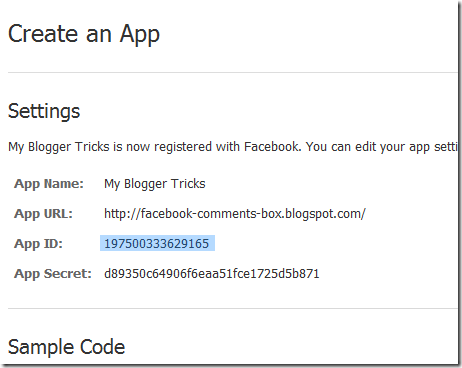
     4.   After submitting the security check code you will see this page,
app-id

       5.   Save that App ID in a notepad because we will need that latter. Now Click the link near the top-right corner of the same page that says "Developer Dashboard"

image

      6.  One the new window that appears click the Edit Settings link ,

edit-settings

        7.  Then go to Website option and write your Site Domain as blogspot

website

       8.  Save Changes and jump to the next step of this tutorial


2- Adding the Facebook comments Box to Blogger


Now its time to do embed the comments box in your blog templates. So follow these easy steps,

PS: Please make sure your blogger comment form is embedded below posts. For doing this first go to Blogger > Settings > comments > and then choose embed comments below posts. After doing this follow the tutorial below.


  1. Go To Blogger > Design > Edit HTML

  2. Backup your template

  3. Check the "Expand Widget Templates" box

  4. Search for <html and just after it give a space and add this code,


xmlns:fb='http://www.facebook.com/2008/fbml'


  5.  Next search for 


<body>


Note: In New Blogger Designed templates the same code looks like this,


<body expr:class='&quot;loading&quot; + data:blog.mobileClass'>


Find any one of these codes and just after it paste the code given below,


<div id='fb-root'/>


<script>


    window.fbAsyncInit = function() {


    FB.init({


      appId  : &#39;YOUR_APP_ID&#39;,


      status : true, // check login status


        cookie : true, // enable cookies to allow the server to access the   session


      xfbml  : true  // parse XFBML


    });


  };

    (function() {


    var e = document.createElement(&#39;script&#39;);


      e.src = document.location.protocol +   &#39;//connect.facebook.net/en_US/all.js&#39;;


    e.async = true;


      document.getElementById(&#39;fb-root&#39;).appendChild(e);


    }());


</script>


  • Replace YOUR_APP_ID with your Facebook application ID that you saved in a notepad.


    6.    Next search for  </head> and just above it paste the following code,


<meta expr:content='data:blog.pageTitle' property='og:title'/>


<meta expr:content='data:blog.url' property='og:url'/>


<meta content='MY Blogger Tricks' property='og:site_name'/>


<meta content='BLOG-LOGO-IMAGE-LINK' property='og:image'/>


<meta content='YOUR_APP_ID ' property='fb:app_id'/>


<meta content='http://www.facebook.com/themobilehub.blogspot' property='fb:admins'/>


<meta content='article' property='og:type'/>


Make these changes:


  • Replace MY Blogger Tricks with your blog title/Name.

  • Replace BLOG-LOGO-IMAGE-LINK with the image link of your logo. Your logo will look good if it is in gif format and having this size ->  40px by 40px . This logo will appear next to your post title on Facebook profiles of your visitors like this,


logo


  • Replace YOUR_APP_ID  with the your Facebook Application ID that you saved in notepad

  • Replace http://www.facebook.com/themobilehub.blogspot with your Facebook user profile link


    7.    Now Search for this,


<b:includable id='comment-form' var='post'>

    8.    Just after it paste the code given below,


<b:if cond='data:blog.pageType == &quot;item&quot;'>


<div style='padding:0px 0px 0px 0px; margin:0px 0px 0px 0px;'><script src='http://connect.facebook.net/en_US/all.js#xfbml=1'/>


<div> <fb:comments  colorscheme='light' expr:href='data:post.url' expr:title='data:post.title' expr:xid='data:post.id' width='520'/></div>


<div style='color:#fff; background-color:#3B5998;border: solid 1px #ddd; font-size:10px; padding:3px; width:510px;'>Facebook Blogger Plugin: Bloggerized by <b><a alt='blogger templates' href='http://www.allblogtools.com/' style='text-decoration:underline; color:#fff;' target='_blank' title='blogger templates'>AllBlogTools.com</a></b> Enhanced by <b><a alt='blogger widgets' href='http://www.themobilehub.blogspot.com/' style='text-decoration:underline; color:#fff;' target='_blank' title='Blogger Widgets'>themobilehub.blogspot.com</a></b></div></div>


</b:if>


  • If you want to use the dark scheme then simply replace light with dark

  • To change the Comments box size, change this value width='520'

  • To change the footer credits size, change this value width:510px

  • Keep a difference of 10 pixels between the box size and footer size. For example if you set box-size to width='600' then set footer-size to width:590px


      9. Save your template and Bingo you are Done! See your blogs to find a beautiful comment box waiting to be touched. =)


Respect Copyright


This plugin contains credits to allblogtools and MBT blog for the efforts put by us in facilitating blogger users with this great commenting plugin. We therefore request you to please do not remove the footer credits. The credits are attached to the plugin in a design style that it perfectly blends the colour themes of Facebook Comments Box. We only need this favour in return.


Need More Fun?


If you want to further play with codes and wish to give a Facebook style (i.e font colours, background colors, background image) to your old blogger comments form then read the post below,


Troubleshooting


If you faced any problem then kindly do not hesitate to let me know. It would be a pleasure to be at your service. I will write more tutorials on this topic this week so that you may get all the latest updates. I hope this plugin proves useful to most of you and it may bless your blogs with even more organic traffic. Peace! :>

Add the Google +1 Button to Your Blogger Blogs


ADD GOOLE +1 BUTTONGoogle released recently there +1 Button that will show publicly what you like, agree with, or recommend on the web. When you +1 an article or tutorial, your name will appear under that article when that article appears in search results. You can also find out what articles your friends read and liked. This according to Google is aimed to make Google Search results more relevant and useful. For Bloggers like you, I am sure this is another great tool to increase the PR, relevancy and importance of your blog. According to me, the more +1'd this you receive the chances for your blog's PR to improve will increase also because the PageRank algorithm is linked to all activities that takes place in your blog. The video below will demonstrate better,


How to add the +1 Button to Blogger?


  1. Go To Blogger > Design > Edit HTML

  2. Backup your template

  3. Search for </head>

  4. Paste the code below just above </head>


<script type="text/javascript" src="http://apis.google.com/js/plusone.js"> {lang: 'en-US'} </script>

     5.  Now Check the "Expand Widgets Templates" Box at the top right corner. In order to place the button just below Post titles then search for this code <data:post.body>  and place the +1 button code given below just above it,


<div style='float:left'>

<g:plusone size="standard" expr:href="data:post.url"/>

</div>


  • You can display it to "left" and "right" by adjusting left

  • You can change standard to medium, small or tall. Choose the size that may blend your template.


Tall, small, Medium Respectively:

image


image

image


6.  If you want the button to appear below blog posts then add the button code just below <data:post.body>

    7. Save your template to see it working. Have fun! :>


Alternative Method


To add the +1 button to your blog directly without any code then you’ll need to enable Share buttons on Blogger. To do this, go to Design > Page Elements on your Blogger dashboard, find the Blog posts area, click on Edit, and select the “Show Share Buttons” option. If you are already using Share buttons, then you don't need to worry as the +1 button will automatically show up as a new share button.


jQuery Image Slider For Blogger - V3


Jquery-Blogger-slider


As per your requests we are glad to present yet another stunning version of Image slideshow Widget for BlogSpot blogs. This widget is different from its previous versions with regard to speed, load time, navigation and control options. You can use it to display even your Featured Posts using the Featured post title and description. This widget is again an extracted code from a WordPress template. The slider is coded such that it will appear on your homepage only. So lets first see a demo,


Live Demo


Adding the Slider To Blogger:


Kindly follow these steps:


  1. Go To Blogger > Design > Edit HTML

  2. Backup your template

  3. Search for </head>

  4. Just above it paste the jQuery code in this page -> Slider jQuery Code

  5. Then search for ]]></b:skin>

  6. Just above it paste the CSS code below,


/*-------------------- MBT jQuery Image Slider -------------*/

.featuredposts{border:1px solid #E9E7DE;width:608px;background:#FFF;margin:0 0 10px 0;height:400px;overflow:hidden;}
.fp-slides{}
.fp-post{padding:13px;}
.fp-thumbnail{border:3px solid #dddddd; width:580px;height:266px;margin-bottom:10px;overflow:hidden;}
.fp-thumbnail:hover{border:3px solid #CAC9C9; width:580px;height:266px;margin-bottom:10px;overflow:hidden;}
.fp-title{color:#787878;font:bold 14px  Arial, Helvetica, Sans-serif;padding:0 0 4px 0;margin:0; text-transform:uppercase;}
.fp-title a{color:#000;text-decoration:none;}
.fp-title a:hover{color:#0080fF;text-decoration:none;}
.fp-label{color:#504D4D;margin:15px 15px 0 15px;padding:0;text-transform:uppercase;font:bold 16px/16px Arial,Helvetica,Sans-serif;}
.fp-post p{color:#504D4D;padding:0;margin:0;font:10px Arial,Helvetica,Sans-serif;height:32px;overflow:hidden;}
.fp-more,.fp-more:hover{color:#F77C04;font-weight:bold;}
.fp-nav{width:590px;padding:0px 10px;height:14px;}
.fp-pager a{background-image:url(https://blogger.googleusercontent.com/img/b/R29vZ2xl/AVvXsEjXBQZ7Ld8HO-gknv804aut12lHn1KwctJzTsC67ewXF3JLsvoa1BuKD1g1dGIYf3qcttJRF9UkAl8vqs4ycRTnSPdRBsEbjzEtT3VVV1X0xxnV8DhpLi_E3jUmAmMWsYaooC0skaoIsaA/s1600/featured-pager.png);cursor:pointer;margin:3px 6px 0 0;padding:0;height:10px;width:10px;display:block;float:left;overflow:hidden;text-indent:-999px;background-position:0 0;}
.fp-pager a:hover,.fp-pager a.activeSlide{text-decoration:none;background-position:0 -110px;}
.fp-prev{float:right;margin-right:4px;width:15px;height:17px;opacity:0.7;background:url(https://blogger.googleusercontent.com/img/b/R29vZ2xl/AVvXsEhubsy7dQsTIeXdX5F2s0aAV3XjTUjwfBmrPVKp_SQypMEAEYyS2irlph9NY9iyTg0WNIjYUOcdO3dZP3poC7eiH8D3qEgsqk7b7J4h9jz9JmDb9uK4viiBnld9qcbuVlxFDn02eG4VUgQ/s1600/featured-prev.png) top left no-repeat;}
.fp-prev:hover{opacity:1;}
.fp-prev:active{opacity:0.7;}
.fp-next{float:right;width:15px;height:17px;margin-left:4px;opacity:0.7;background:url(https://blogger.googleusercontent.com/img/b/R29vZ2xl/AVvXsEgSvSq_Jz8cTWDgh1ieViMR9BwjeHegeD3ldvSqQzi6dV0JP3TE14ePRkNsgyLZGmR1d7q46NphFTBmnLK_LopbzGCzB4jyjRtULv4yKck2MFpDlS1AbpHDYLsfhjSlkPp-E6RttgW3A_8/s1600/featured-next.png;) top left no-repeat}
.fp-next:hover{opacity:1;}
.fp-next:active{opacity:0.7;}


          7.   Now Search for this,


<div id='main-wrapper'>

Hint: This code is located near <div id='content-wrapper'>

PS: In this part most of you will face problems as the coding for each template differ. If you could not find this code then do not panic and simply post your Blog URL in the comments.

   8.   and just below it add the HTML code below,


<b:if cond='data:blog.pageType != &quot;static_page&quot;'>
<b:if cond='data:blog.pageType != &quot;item&quot;'>


<div class='featuredposts clearfix'>

<div class='fp-slides'>

<div class='fp-post'>
<div class='fp-thumbnail'><a href='ADD POST URL-1 HERE'><img src='ADD IMAGE-1 LINK HERE'/></a></div><h3 class='fp-title'><a href='ADD POST URL-1 HERE'>WRITE POST TITLE HERE...</a></h3> <p> WRITE POST DESCRIPTION HERE... </p>
</div>

<div class='fp-post'>
<div class='fp-thumbnail'><a href='ADD POST URL-2 HERE'><img src='ADD IMAGE-2 LINK HERE'/></a></div>
<h3 class='fp-title'><a href='ADD POST URL-2 HERE'>WRITE POST TITLE HERE...</a></h3> <p> WRITE POST DESCRIPTION HERE... </p>
</div>

<div class='fp-post'>
<div class='fp-thumbnail'><a href='ADD POST URL-3 HERE'><img src='ADD IMAGE-3 LINK HERE'/></a></div>
<h3 class='fp-title'><a href='ADD POST URL-3 HERE'>WRITE POST TITLE HERE...</a></h3> <p> WRITE POST DESCRIPTION HERE... </p>
</div>

<div class='fp-post'>
<div class='fp-thumbnail'><a href='ADD POST URL-4 HERE'><img src='ADD IMAGE-4 LINK HERE'/></a></div>
<h3 class='fp-title'><a href='ADD POST URL-4 HERE'>WRITE POST TITLE HERE...</a></h3> <p> WRITE POST DESCRIPTION HERE... </p>
</div>

<div class='fp-post'>
<div class='fp-thumbnail'><a href='ADD POST URL-5 HERE'><img src='ADD IMAGE-5 LINK HERE'/></a></div>
<h3 class='fp-title'><a href='ADD POST URL-5 HERE'>WRITE POST TITLE HERE...</a></h3> <p> WRITE POST DESCRIPTION HERE... </p>
</div>

</div>          

<div class='fp-nav clearfix'>
<span class='fp-pager'/>               
<a class='fp-next' href='#fp-next'/>
<a class='fp-prev' href='#fp-prev'/>
</div>
         
</div>


</b:if></b:if>


Make these changes:


  • Replace ADD POST URL-1, 2, 3, 4, 5 HERE with the URL of your post pages one by one. These URLs will be added twice for each slide. Once for the image and second time for the Post title.

  • Replace ADD IMAGE-5 LINK HERE with the Image link of the Featured post. By default all images have width:580px; height:266px; You can edit the image size by editing the width and height in the CSS code shared in step#6. Make sure all your images must have same size

  • Replace WRITE POST TITLE HERE... with the title of your Post Page

  • Replace WRITE POST DESCRIPTION HERE with the Post Page description. You can write the first few lines of your post here and the readers can read the full post by clicking the title.

  • To Change the Overall size of the slider container then edit in step#6 the following two codes -> width:608px and height:400px


   9.   Save your template and you are done! Visit your blog and say Bingo! :>


Previous Versions:


You can also check the old versions here,


If you faced any problem implementing this tutorial then please do not hesitate to post your question. Would be a pleasure helping you. Have Fun! :>

Facebook Social Bookmarking Widget


I hope most of you have downloaded the free Social Media Buttons which are designed just how Facebook Buttons are designed. In today's tutorial we will learn how you can add those buttons to your blogger blogs. The steps are similar to the earlier Social Bookmarking widget that we shared. click here for For Demo

Facebook-Bookmarking-Widget


Steps To Be Followed


  1. Go To Blogger > Design > Edit HTML

  2. Back up your template

  3. Check the Expand Widget Templates box

  4. Then click Ctrl + F and in the browser search box paste this,


data:post.body

    5. Now Just above this code paste the code below,


<b:if cond='data:blog.pageType == &quot;item&quot;'>

<table border='0'>

<tr>

<td>

<!--Stumbleupon-->

<a expr:href='&quot;http://www.stumbleupon.com/submit?url=&quot; + data:post.url + &quot;&amp;title=&quot; + data:post.title' rel='external nofollow' target='_blank'><img alt='Stumble' src='StumbleUpon Button Link'/></a>

</td>

<td>

<!-- Twitter -->

<a expr:href='&quot;http://twitthis.com/twit?url=&quot; + data:post.url + &quot;&amp;title=&quot; + data:post.title' rel='external nofollow' target='_blank'><img alt='Twitter' src='Twitter Button Link '/></a>

</td>

<td>

<!--DIGG-->

<a expr:href='&quot;http://digg.com/submit?phase=2&amp;url=&quot;  + data:post.url' rel='external nofollow' target='_blank'><img alt='Digg This' src='DIGG Button Link '/></a>

</td>

<td>

<!--Email a Friend-->

<a expr:href='data:post.emailPostUrl' expr:title='data:top.emailPostMsg'>

              <img alt='' src='EMAIL Button Link'/>

          </a>

</td>

<td>

<!--Facebook-->

<iframe allowTransparency='true' expr:src='&quot;http://www.facebook.com/plugins/like.php?href=&quot; + data:post.url + &quot;&amp;layout=standard&amp;show_faces=false&amp;width=100&amp;action= like&amp;font=arial&amp;colorscheme=light&quot;' frameborder='0' scrolling='no' style='border:none; overflow:hidden; width:450px; margin-top:16px; height:40px;'/>

</td>

</tr>

</table></b:if>


    6.  Simply Replace the blue bolded text with button links I shared in last post on Facebook Buttons. Finally save your template and you are done! :>

You may also like to check these social bookmarking widgets


Add WordPress Style Menu Tabs Widget To Blogger!


Menu-Tabs-Widget The widgets on a Wordpress Blogs surely are well designed and coded but they look even better when they are bloggerized and made compatible to work in Blogger.  Last year we created Advanced Multi Tabbed Widget that was well appreciated by everyone and today we have yet another but far improved multi tabbed widget. The best thing about this widget is that you can add as many widgets as you want inside a single Tab which you could not do previously. Beautiful CSS and Jquery effects are added this time to the tab views and I have tried again to make its installation as easy as possible. So do not delay any further and learn how to add a professional looking tabber widget to your free Blogger blogs.


Live Demo


How To Add this Multi Tabbed Widget To Blogger?

I have divided the tutorial in three parts which are,

  1. Adding the JQuery and JavaScript to your Blogger templates
  2. Adding the CSS
  3. Adding the HTML

1- Adding the JQuery and JavaScript to your Blogger templates
  1. Go To Blogger > Design > Edit HTML
  2. Backup your template
  3. Search for ]]></b:skin>
  4. Just below it paste the following code –> MBT Menu Tabs JavaScript
  5. Save your template
  6. Done!
2- Adding the CSS
  1. Inside your template search for ]]></b:skin> again
  2. Just above it paste the code below,

/*---- Wordpress Style MBT Menu Tabs----*/

.MBT-tabs{list-style:none;list-style-type:none;margin:0 0 10px 0;padding:0;height:26px}
.MBT-tabs li{list-style:none;list-style-type:none;margin:0 0 0 4px;padding:0;float:left}
.MBT-tabs li:first-child{margin:0}
.MBT-tabs li a{color:#fff;background:#333333;padding:5px 5px;display:block;text-decoration:none;font:bold 12px Arial,Helvetica,Sans-serif;}
.MBT-tabs li a:hover,.MBT-tabs li a.MBT-tabs-current{background:#A46F38;color:#fff;text-decoration:none}
.MBT-tabs-content{background:#212121}
.MBT-tabviewsection{margin-top:10px;margin-bottom:10px;}

Simply replace #A46F38 with the HexaDecimal Colour code of your template so that the tabs may blend perfectly into your template.

3- Adding the HTML
  1. Now Search for <div id='sidebar-wrapper'>
  2. Make sure the widgets box is unchecked.
  3. Just below <div id='sidebar-wrapper'> paste the code below,

<div class='MBT-tabviewsection'>

<script type='text/javascript'>
            jQuery(document).ready(function($){
                $(&quot;.MBT-tabs-content-widget-MBT-id&quot;).hide();
                $(&quot;ul.MBT-tabs-widget-MBT-id li:first a&quot;).addClass(&quot;MBT-tabs-current&quot;).show();
                $(&quot;.MBT-tabs-content-widget-MBT-id:first&quot;).show();
                $(&quot;ul.MBT-tabs-widget-MBT-id li a&quot;).click(function() {
                    $(&quot;ul.MBT-tabs-widget-MBT-id li a&quot;).removeClass(&quot;MBT-tabs-current a&quot;);
                    $(this).addClass(&quot;MBT-tabs-current&quot;);
                    $(&quot;.MBT-tabs-content-widget-MBT-id&quot;).hide();
                    var activeTab = $(this).attr(&quot;href&quot;);
                    $(activeTab).fadeIn();
                    return false;
                });
            });
        </script>

<ul class='MBT-tabs MBT-tabs-widget-MBT-id'>
<li><a href='#widget-MBT-id1'>Subscribe</a></li>
<li><a href='#widget-MBT-id2'>Latest Tricks</a></li>
<li><a href='#widget-MBT-id3'>Search</a></li>
</ul>

<div class='MBT-tabs-content MBT-tabs-content-widget-MBT-id' id='widget-MBT-id1'>
<b:section class='sidebar' id='sidebartab1' preferred='yes'>
</b:section>                                      
</div>   

<div style='clear:both;'/>                       
<div class='MBT-tabs-content MBT-tabs-content-widget-MBT-id' id='widget-MBT-id2'>
<b:section class='sidebar' id='sidebartab2' preferred='yes'>
</b:section>                                        
</div>   

                       
<div style='clear:both;'/>
<div class='MBT-tabs-content MBT-tabs-content-widget-MBT-id' id='widget-MBT-id3'>
<b:section class='sidebar' id='sidebartab3' preferred='yes'>
</b:section>                                       
</div>

</div>
<div style='clear:both;'/>


Please Replace Subscribe, Latest Tricks and Search with your Widget Titles that you will be adding.

   4.  Now Go To Page Elements. You will see something like this,

Blogger-Page-Elements Menu tabsStart adding your widgets and after you have added all your widgets then simply view your blog to see it in action. Done! :-)

Note:- Most of you will ask me several questions here as usual =d Because every template is coded differently. People who are not very familiar with HTML often find it difficult to understand this part but no worries anymore if you are not able to pass this step then kindly email me your template at mustafa.stc @ G Mail and I will tell you where should you paste the code. Plus I will also help you on how to add an extra Tab to your widget to make a total of four tabs. This help is for MBT subscribers only if you haven’t availed the opportunity of becoming a MBT reader then kindly subscribe here to avail unlimited resources.

Let me know how you find it?

I just hope this little contribution from our side will be of value to all of you. I would love to know about your precious views. Peace and blessings.