Showing posts with label Internet Speed. Show all posts

How to Check Your Internet Speed with Simple Steps


Internet speed is very important to download your favorite videos, picture, movies and many other online works. When you do something on your favorite web site and its loading very slow, you can test your internet speed Test and know if it’s your link or the server where the web site resides. After your test results are comparable to past. Then it is not your server problem.

Just follow below steps to check your internet speed.

Steps #1
 
First how quickly your PC connects to the internet, make sure your PC is connected to the internet.

Click on "Command" + "F".
Type in "Activity Monitor" or open the app.
Click on the Network tab and peak your internet speed.

Select a server that is nearest to your current location. A server short list of some reasons and internet is working at slow speeds.

Steps #2
 
Compare your internet connecting speed.

Dial-Up Modem Speed: 10 to 40 kB/sec.
DSL and Cable Speed: 500 kB/sec.
T-1 Speed: 1000+ kB/sec.

Steps #3
 
Before you get started internet speed, make sure your PC is connected to the internet.

Go Start Menu or Search for Network
Click  Network
Click on the "View status" to check your internet speed

How to Increase Your Internet Speed Up to 150% with Simple Steps


If you use the Internet to stay connected with family members, friends, shopping, entertainment or work tend to be the best course of browsing speed is important to you. Whether it be high speed broadband or 3G internet connection, often returns to the problem of slow internet speed. Slow Internet speed can be frustrating and reduce your work performance while online surfing. Online movies, YouTube Videos, gaming and other Internet activity today often requires fast Internet speeds. There are  many software available that you can install on your computer to  increase your internet speed . But here is the simple and free steps to grow your internet speed.

For Internet Explorer 8 Users
Internet Explorer 8 makes this very simple, allowing you to delete Temporary Internet Files and Cookies of your browsing in a few quick and easy steps.

Step 1- Open Internet Explorer

Step 2- Click the Tools Menu, then click Delete Browsing History.

Step 3 - Select the check box Temporary Internet Files and Cookies.

Step 4 - After that click the delete button.

For Mozilla Firefox Users

Step 1- Click on Tools Menu, Then click Clear Recent History

Step 2- Select Cookies and Cache box

Step 3- Click the Clear Now Button

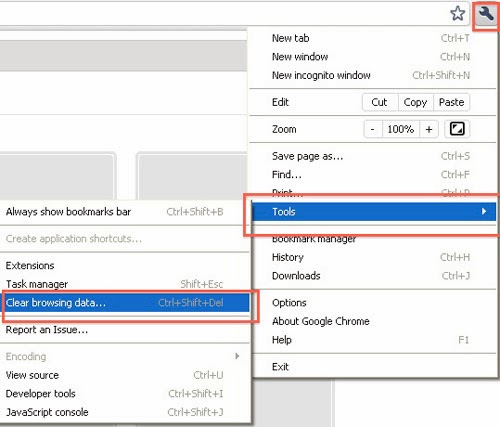
For Google Chrome Users
Deleting your Google Chrome browsing history is a great way to protect your privacy. Just follow below simple steps.

Step 1 -Click the Google Chrome menu on the toolbar.

Step 2- Select Tools on the toolbar menu.

Step 3- Select Clear browsing data.

Step 4- Select the "Clear browsing history".

Step 5 -Click the Clear browsing data button.

You can also use (Ctrl + Shift+ Delete) keyboard shortcut for deleting your browsing history.