Showing posts with label Belle. Show all posts

Nokia 808 PureView review - The last of the Symbians


The Nokia 808 is nothing short of a wonder,a miracle. The looks of the phone don't and can't tell much about what goes on inside, about what the 808 is all about.


The device has a very weird shape, going from beautiful to outright ugly depending on the angle you look at it from. The hump on it's back is responsible for this transmogrification of the device. The curved body, however, is a pleasure to hold, fits neatly in the hand and the polycarbonate shell that covers the phone's back provides an excellent grip.


The front of the phone is dominated by the 4 inch display covered in Gorilla glass. The hardware buttons are grouped in a plastic strip much like the 603 and the Lumia 710. The display is curved like on the Lumia 800, but the curvature is not as prominent as on the WP device. The curved display makes swiping left and right easier and the phone also slides in and out of you pocket easier.

On the right hand side you'll find the volume rocker, the lock/unlock knob and the dedicated camera key. The camera key fires up the camera application even when the phone is locked.

On top of the phone you'll find the HDMI port, the micro-USB port and the 3.5mm jack port. The HDMI port is protected by a plastic lid, and considering you won't use it everyday, that's a good thing.


The box contains the phone itself, a data cable and charging adapter, and a pair of hands free headset. I was kind of disappointed because I was expecting accessories at least like the N8 box. There is no USB-On-The-Go cable and no HDMI cable either. For such an expensive phone, I think those two were supposed to be in the box.

On the back of the phone you'll find the gigantic camera hump that hides the amazing 41MP camera sensor. The camera is helped by the Xenon flash which is said to be 4 times more powerful than the unit on the Nokia N8. The camera can shoot 38MP photos in Creative mode, 8MP photos in PureView mode and record full HD videos at 30 frames per second. The cherry on the top here is the fact that the 808 provides lossless zooming while recording videos, which is a first for smartphones.

The phone is powered by an 1400mAh battery which is good for about two days of moderate to heavy usage, including shooting photos and videos.


Unfortunately the micro-SIM card and the SD card slots are located under the battery so they are not hot swapable.

If you're thinking of buying this phone you'd better do your homework first. This phone is going to offer you so many shooting modes that you won't know where to start and where to finish. Don't get me wrong, that is a good thing, no, actually an amazing thing. This phone will shine in the hand of a person who knows he/she's way around a camera. That does not mean that non camera savvy people cannot use it. Just switch to the PureView mode and you'll get some amazing 8MP photos without breaking a sweat.

The phone is powered by a 1.3GHz CPU which is helped by a dedicated camera GPU to process the enormous amount of data the camera sensor captures. The device packs 512MB of RAM, 16GB of onboard storage and it's animated by Nokia Belle Feature Pack 2 formerly known as Symbian Donna.

Feature Pack 2 is the last steer in the MeeGo direction that was started with the original Belle. I don't know about the performance improvements that Feature Pack 2 brings because I have no means to compare Feature Pack 2 with it's predecessors. All I can say is that the last Symbian iteration runs unbelievably smooth on the 808. Considering the experiences with Feature Pack 1 that other people wrote about, I believe that Feature Pack 2 is indeed an improvement.


Feature Pack 2 mainly brings changes to the aesthetics of the OS and not so much on the functionality. The only major functionality change is the portrait QWERTY keyboard that has been almost completely replaced. I say almost because in full screen edit mode, for example, the old QWERTY shows it's ugly head once again.


A new button has been added to the homescreen toolbar, and that is the search key, which is a shortcut to the search app. No biggie there.


The context menus now appear all centered and that is a good thing since you no longer have to chase the context menu around the screen. This change also brings consistency across the OS. The apps menu has also been refined and now looks more like the menu Qt apps have, with the first and last menu elements having rounded corners.

As with any device, there are some pros and some cons. Here they are in my opinion.

Pros

- Mind blowing 41MP camera
- Xenon flash
- Amazing camera app - very customisable helps you make the most out of the amazing camera sensor
- Speed is better than ever
- Good battery life for a smartphone
- Lock/unlock knob is very useful
- The curved glass display is a real treat
- ClearBlack display has really deep blacks

Cons

- Symbian is dead a.k.a. In maintenance mode
- Web browser still not as fluid as should be with heavy pages
- nHD resolution it's kind of stretched on the 4 inch display
- Poor choice of apps compared with rival app stores
- Way too thick by today's standards
- Lack of a power button makes accidental shutdown a real problem until you get used to how it works

Conclusion

For Symbian fans this is the phone of their dreams with a decently sized display, a fast processor, amazing camera and superb build quality. The price however, will be a setback for those of you who are not crazy about having a phone that can shoot photos better than a digicam, but the 701 will provide the same user experience considering the similar specs.

All in all the 808 is a competitive smartphone. The only glitch that I can complain about is the web browsing experience that is not on par with today's top shelf smartphones. The web experience is the fastest Symbian has ever seen, but compared to Windows Phone or Android it's in the mid-range. It's not a showstopper like it was on first generation Symbian devices. It seems that Nokia had managed to finally find a hardware combination that brings Symbian into the present of smartphone OS's. Too bad this is the end if the line for Symbian.
The Nokia 808 is proof of what Symbian could have been and but never got the chance to become until it was to late. It's ironic that Nokia manged to bring Symbian to a competitive level two years after it practically buried it. It's Nokia's latest, last and greatest Symbian. It's Symbian's greatest device and death sentence all in one.

Nokia Belle Refresh - What happens after the dust settles


The first impression Belle Refresh left me was a big disappointment. And in some aspects it is. This is supposed to be the last big update for the N8 generation so I was expecting more. And by more I mean more FP2 features. But it didn't happen. Now that I got over that initial WTF moment it's time to take a look under the hood to see what are the performance improvements that arrives with this new update.


First of all let's tackle the browser. Updated to version 8.3 the browser brings some subtle but worth noting user interface updates. Besides the back and forward buttons we have the windows and a favorites buttons that make your life a bit easier when navigating the web. The favorites button opens up a three tabs panel with most visited, bookmarks and history. It's good thing that all bookmarks and favorites are in the same place. The usual web browser menu, a reminiscence of S60v5, is now gone and you can do basically the same operations as before from the context menu.
Another improvement, and this is a big one, is the browser rendering speed. It's a big improvement over the old version with zooming in and out being now way smoother than before. You can even zoom in and out as the page loads and it works pretty well. Unlike before when you used to get lots of lag even after the page was fully loaded, now you won't see anymore if those lags. So, the updated browser gets a big thumbs up. If you compare this version to the S60v5, you can't tell the current one is an evolution of that old version.


Between all the clock widgets that were included in this update, there are others that were really needed and welcomed by us all. The first is the Data Counter widget that comes with a small app too and tells you how much mobile data you've consumed. You just need to set your monthly limit and the day your limit gets reset. You can also choose to disable the mobile data when the limit is hit to avoid extra costs.

The second much needed widget is Mail,New arrival. This one can replace the big old half homescreen mail widget with a shortcut that shows you a badge notification when you have new mail. I would have liked to see the new mail notification in the system pull-down area and on the lockscreen, just like the notifications for new messages and missed calls. It's not very ergonomic to unlock you phone whenever you want to check if you have new mail.

The third widget that is worth mentioning is the Contacts widget that can now show a group on the homescreen and not just your favorite contacts. In the old Belle if you would have added the Contacts, favorites to your homescreen three times, you would have got the same contacts in all widgets. Now, if you define 3 different groups you can have three different widgets, one for each group. A big improvement over the old approach.

Also, worth mentioning are the toggle widgets fro 3G, Mobile Data, Offline mode and Silent mode.

Belle Refresh also includes the latest QT version, 4.8. The new version seems to have boosted the speed of the apps written in this language. Apps seem to scroll smoother and the touch input has been optimized for swiping gestures. Without needing to update the existing apps they run smoother and accidental scrolling when you intended to swipe happens a lot less now.

But the Belle Refresh update didn't just improve things, it also broke some apps. That was expected from third party apps that had compatibility issues, but I wasn't expecting that to happen to the Microsoft Office suite. The new update rendered OneNote useless. Synchronization was gone and I wasn't able to login to my account again for one simple reason: I could not type in my username and password. When I touched the input fields the keyboard did not pop up. Maybe a hard reset will fix it, but at the moment I am don't want to lose all my user data because of this issue. Maybe Microsoft will issue an update, but it's unbelievable that Nokia's new best buddy didn't do it's homework to properly test the office suite with the latest Belle update.

Even though not all expectations were met with this new update, it's clearly an improvement over the original Belle, but I hope this is not the end of the line as far as updates are concerned for the first generation of Symbian^3 devices.

nWeather review - Free weather app for Nokia Belle


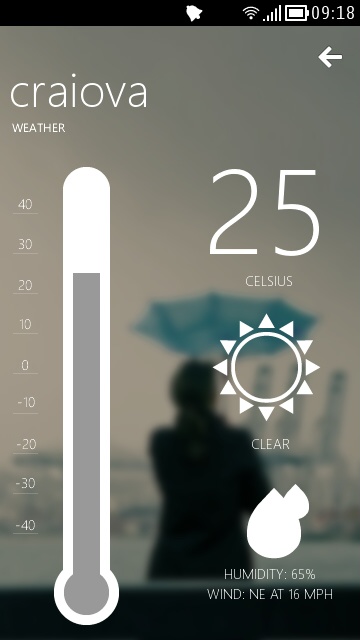
Today I will show you a fresh new weather app. It's called nWeather and it's been on the Nokia Store for short while. It's not your usual weather app with lots of screens and lots of features, it doesn't have a widget(yet) but it gets the job done. The application is written in Qt by Badcoke.


The application has two main screens. The first one that you are presented with is the screen where you need to enter the name of your city. Once you press the "Let's go button" you are taken to the second screen that shows you the current weather conditions and a three day forecast. You can swipe across this screen to get either the forecast or the current weather conditions.

The app is not some award winning weather app, but it looks gorgeous, and that's the main reason I decided to present it to you guys. For me it's the perfect weather app that shows you all you need to know in the most pleasant and simple way possible.

The app weights 3.4MB and you can download it from here: nWeather on Nokia Store

SymPaper for Nokia Belle review - Read it later


SymPaper is Symbian’s only Read it later client, or at least the only that I know of. It is a paid app and this review is meant to help you make this decision: is it worth it?

It all depends on how often you use Read it later/Pocket on your Symbian device. But first of all, let’s see what Read it later is all about. Well, let's say you encounter a nice little article that you want to read but don’t have the time to do it. Usually you just bookmark it and come back later to read it. But what it you can’t find that article anymore? What if it was removed, or something else happened and you just can’t read it anymore? Here is where Read it later/Pocket comes in handy. When you add a page to Read it later it’s not like you’re just bookmarking it. Read it later will download that page and will keep it’s content in your account until you decide to delete it. So even if that article that you were interested in is no longer online, you can always read it with Read it later.

Next question I hear is “what apps use Read it later?”. Tough question. Unfortunately not too many. It would be great if the Belle browser used it, but Nokia did not integrate such functionality in it. The main social applications, however, do support Read it later. Gravity is my choice when it comes to Twitter and fMobi when it comes to Facebook, and both support Read it later. I have to note here that Gravity too has a Facebook client and Foursquare client with Read it later support.

But the advantages do not stop here. You can have these pages across all your devices, be them Windows Phone, Symbian, iOS, Android or desktop computers, and that my friends is the power of Read it later. You see an article on your phone, you send it to Read it later and later when you’re at home, you get your tablet and you read.


The application main view consists in the list of articles that you have added to your account. From the context menu you can choose to see All articles, Read articles or Unread articles like a filter.

Using the “plus” button you can add an article by specifying it’s URL and optionally it’s title.


The article view is very simple and offers you a simple toolbar with the ability to mark the article as read or share it. You can share the article by SMS, Email, Twitter or Facebook. From the context menu you can delete the article, re-sync it which means the app will try to re-fetch the original URL of that article or open it in browser.


In the settings there are lots of tweaks that can be used to customize your SymPaper experience and data usage. First you have the Fetch mode where you can decide if the articles you already read should be fetched from the Read it later server or not. Second you have the number of articles to be fetched. By default this number is set to 500. You wouldn’t want to download a whole bunch of ancient articles, right? Next you have the search mode that decides how you want to search for your articles. Here you have two options: search in title or in article content. I suggest you use the title search and only if you can’t find what you need switch to content search as this may be an exhaustive search. Next option is Auto Sync At Startup which synchronizes with your Read it later account each time you run SymPaper.

The article settings section is all about the reading experience, so here you can tweak that. First of all we have the font size and here you can choose from four predefined sizes, which should be enough for anyone regardless of their screen size. Next we have the theming or skin options. The Light list theme and Light reader theme will instruct SymPaper to use white background an black text color within the items list and article reader. While that may be OK for non AMOLED screens, I strongly recommend you keep using the dark theme on AMOLED displays. The Images option decides if your article reader displays images or not and the maximized reader option removes the system status bar from the same article reader. The Automatically Mark As Read option will mark an article as read once you’ve opened it.

I have to say that SymPaper may be Symbian’s single Read it later client, but it’s basically all you need. It’s written by the same Talv Bansal that wrote SymNote I reviewed last week.

The app is paid and you can get it from here: Download

Office suite comparison review for Nokia Belle - Quickoffice vs Smart Office


Today we're featuring a battle of office suites and we get to see which suite is better and for whom. I was planning to do a three way comparison between QuickOffice, Smart Office and Microsoft Office Mobile, but the Nokia Belle variant of MS Office is just below par and cannot be compare with the other two, so including it in the review would have been a waste of time. Plus MS Office has only SkyDrive integration which means no Google Docs or Dropbox and that for me is a buzz kill. This review will be centered mostly on Word document editing and a little Excel part too. Why? Because any way you look at it, PowerPoint presentations are painful to work with on such small screens(yes even a 4 incher is small for PowerPoint).

QuickOffice vs Smart Office

Let's start with the initial impressions.

Smart Office


Smart Office is quick. I mean really quick. It opens document files faster than your email client opens a mail. It's that quick. The user interface is very fast and very intuitive with advanced options hidden away. Everything about Smart Office is about touch and gestures. It was born for touchscreens. Viewing a document is a breeze. Zooming in and out it very fast and sharp. The text reflow option available for the document viewer is a must for every editor out there. Besides being a very quick editor viewer, Smart Office is also well connected. It integrates Google Docs and Dropbox directly into the Smart Office file browser.

Quickoffice


Quickoffice does not impress with blazing speeds or very intuitive interface, but there is something about it that screams professionalism. The user interface is a bit sluggish at times, but that is because it is at the same time a viewer and an editor. I'll get back to that later. Quick office is also very well connected, supporting Google Docs, Dropbox, Box and SugaSync. As far as documents in the cloud goes Quick office wins the day. Quickoffice also has text reflow on the editor which comes in handy on a small mobile display. Of course that doesn’t mean you can’t see the entire print preview, that option being available in the context menu.

File support


Excel file view: Left - Quickoffice, Right - Smart Office


Smart Office supports Word, Excel, PowerPoint and PDF files while Quickoffice supports only Word, Excel and PowerPoint. However Quickoffice can be complemented by Adobe LE Reader developed by the same company. I was able to open most office files with both suites with a few exceptions. Quickoffice was not able to open some Excel files created by Microsoft Mobile Office while Smart Office did and Smart Office was not able to open any Excel files from Google Docs while Quickoffice did.

Viewer and Editor


Smart Office default view, toolbar on top, one on the bottom


I for one prefer to open PDF files with Smart Office because it displays them faster. On the documents side I prefer Quickoffice because of the ease of writing documents. Both apps offer text reflow for documents. You no longer have to zoom in and out to properly see the contents of your document, instead it gets reformatted to fit your screen. This is a technique mostly used in modern web browsers to help people experience web sites on the go. The same principle applies here but with documents.


Quickoffice default view, text reflow, context menu


When it comes to viewing office files people have their own preferences. Some like to see the full print layout while others prefer the readable view that text reflow allows. Both apps allow both views but have different defaults. For example Smart Office opens all documents by default in the print layout view allowing reflow after the document is opened, while Quickoffice works the other way around, first opening the reflow layout and later seeing a print preview. It's really about what you prefer.


When you need to edit your documents with Smart Office you have to place you cursor where you want to insert text and then press the Edit button in order to insert new text. A full screen edit box is then opened and you can insert your text there, but you do not see the rest of the document, just the new text you are inserting. That can be a bit frustrating for people who use hardware QWERTY phones such as the E7 or the E6. With Smart Office you have to format your text after you insert it. The text reflow function of Smart Office works very well, even when zooming in and out, but I would have liked to see an option to use the reflow by default. Instead you have to activate the function every time you open a different document and that’s just silly.


Quickoffice takes a completely different alternative by placing a keyboard button in the middle of the Belle toolbar. Place your cursor anywhere inside the document, press the keyboard button and just start typing. This way you see your document as you change it. This is why I like editing files with Quickoffice way better than with Smart Office.

Conclusion

If you need a office software suite that can view files perfectly and need little to no editing of your files then Smart Office will surely meet your needs. The price can also be a factor here since Smart Office costs a quarter of what Quickoffice will set you back. However, if you need serious document editing on the go, then Quickoffice is the clear winner here. On a side note, users of N-series and E-series phones will already have Quickoffice installed, all the need is an update to the latest version.

I like Quickoffice better because it is optimized for mobile use. Starting with the big buttons welcoming screen, continuing with the large list items file explorer list and on to the default mobile(reflow) view of the documents, Quickoffice is designed to be used on the go. With Quickoffice's user interface you can check your documents even when you are behind the wheel(not driving of course) since the UI elements are large enough to use with one hand. On the other hand Smart Office's browser displays smaller text and thinner fonts and the default view is print view, which makes it unusable in your car. If that's one of the decision factors in a purchase think about that one too.

Some people asked me how I can edit documents on my N8 touch screen without smashing my phone to the ground in frustration. Well you can’t with the default Belle keyboard, but once you use the Nokia Beta Labs version of the Swype keyboard things change. I used to think that I needed a physical keyboard to properly write reviews, but I was turned by the progress that Swype made in the last period. Remember that you need to download the Swype version from Beta Labs, the one existing in the Nokia Store is a pain to use. Who said the N8 can’t be a great business phone? :)


Tweetian for Nokia Belle review


Twitter just got a new client on Belle. After the classic Gravity the shaky TwimGo and the AMOLED killer Tweeties, it's time for Qt to deliver it's best Twitter client yet. Don't get me wrong, it can't hold a candle to Gravity, but it's biggest advantage? It's free. If Tweeties was meant to help you migrate to a new OS, Tweetian is here to make you stay.


Tweetian is very easy to navigate and use. It has three homescreens for your Timeline, Mentions and Messages. Swipe to the left to reveal each of them. I would have liked Tweetian to include loop scrolling here so I could reach the first screen from the last easier.


Tweetian offers pull-down to refresh, cached images and tweets which is good to have in order to keep your Twitter API rate up. The user interface is as quick as it gets with Qt apps but I have to say that the author used a paining system similar to Gravity's, meaning that while you scroll trough your tweets, the images are no loading. When you take you finger off the screen they start loading. That means no more chunky scrolling. It's actually a very impressive app.

You can add photos and location to your tweets easily and the tweet editor integrates well with both the default Belle keyboard and Swype. Retweeting, replying and adding a tweet to your favorites is a breeze and can be done from the bottom toolbar.


In the user profile panel you can see practically everything about that user, the Bio, the tweets, the followers, the following, the lists, the favorites by swiping trough them.


The settings are comprise of three tabs. In the General tab you can switch the theme, enable the option to include hashtags in replies and a sign out button in case you want to switch the account. It is good to know that unlike Gravity, Tweetian does not offer support for multiple Twitter accounts, so enterprise users need to look elsewhere. The second tab is called Refresh and there you can set the automatic refresh timings for various items. By default auto refresh is off. The third tab called API Limit does exactly what it tells. It shows you your Twitter API limits. It's just a status panel that you can check after using Tweetian heavily.

That being said I can honestly tell you that this app is going places. It can easily replace your Nokia Social client when it comes to Twitter. The app is very fast and I like it. Usually with Qt apps the scrolling and loading of panels is chunky and slow but somehow Tweetian works around those issues making it very fast and clean.

Download:Tweetian at Nokia Store